Centreon Map
  • About
  • Release notes
    • Centreon MAP 18.10
    • Centreon MAP 4.4
    • Centreon MAP 4.3
    • Centreon MAP 4.2
    • Centreon MAP 4.1
    • Centreon MAP 4.0
  • Installation
    • Architecture
    • Prerequisites
    • Server
    • Web Client
    • Desktop Client
    • Monitoring your Centreon MAP server after installation
  • Upgrading
    • Centreon MAP Server
    • Centreon MAP Web client
    • Centreon MAP Desktop client
  • Installation for a “Centreon Remote Server”
    • Installation of Centreon MAP for a Centreon Remote Server
    • Centreon Broker configuration
    • Uninstallation of Centreon MAP module
  • User Guide
    • Using Centreon MAP
    • Configuration
    • Upgrading from Centreon MAP 3 to Centreon MAP
    • Using shortcuts
  • Procedures
    • Migrating your Centreon MAP server
    • Centreon MAP configuration files
    • SSL configuration with a recognized key
    • SSL configuration with an auto-signed key
    • Broker configuration
    • Backup of Centreon MAP server
    • Restore data from Centreon MAP server
  • Frequently asked questions
    • Can resources be displayed in Centreon MAP, though they might not yet be deployed in real time?
    • How do I change the Centreon MAP port?
    • How to change Centreon MAP port below 1024
  • Known issues
  • Troubleshooting
    • General
    • Centreon MAP desktop client
    • Centreon MAP web client
 
Centreon Map
  • Docs »
  • User Guide »
  • Using Centreon MAP »
  • Links
  • Edit on GitHub

Links

When using Centreon MAP, you can create links between any elements. There are three type of links:

  • Simple link: Connects two elements in color.
  • Status link: Uses a color based on the status of a service.
  • Metric link: Displays the % of a metric, appearing in a color according to this value.

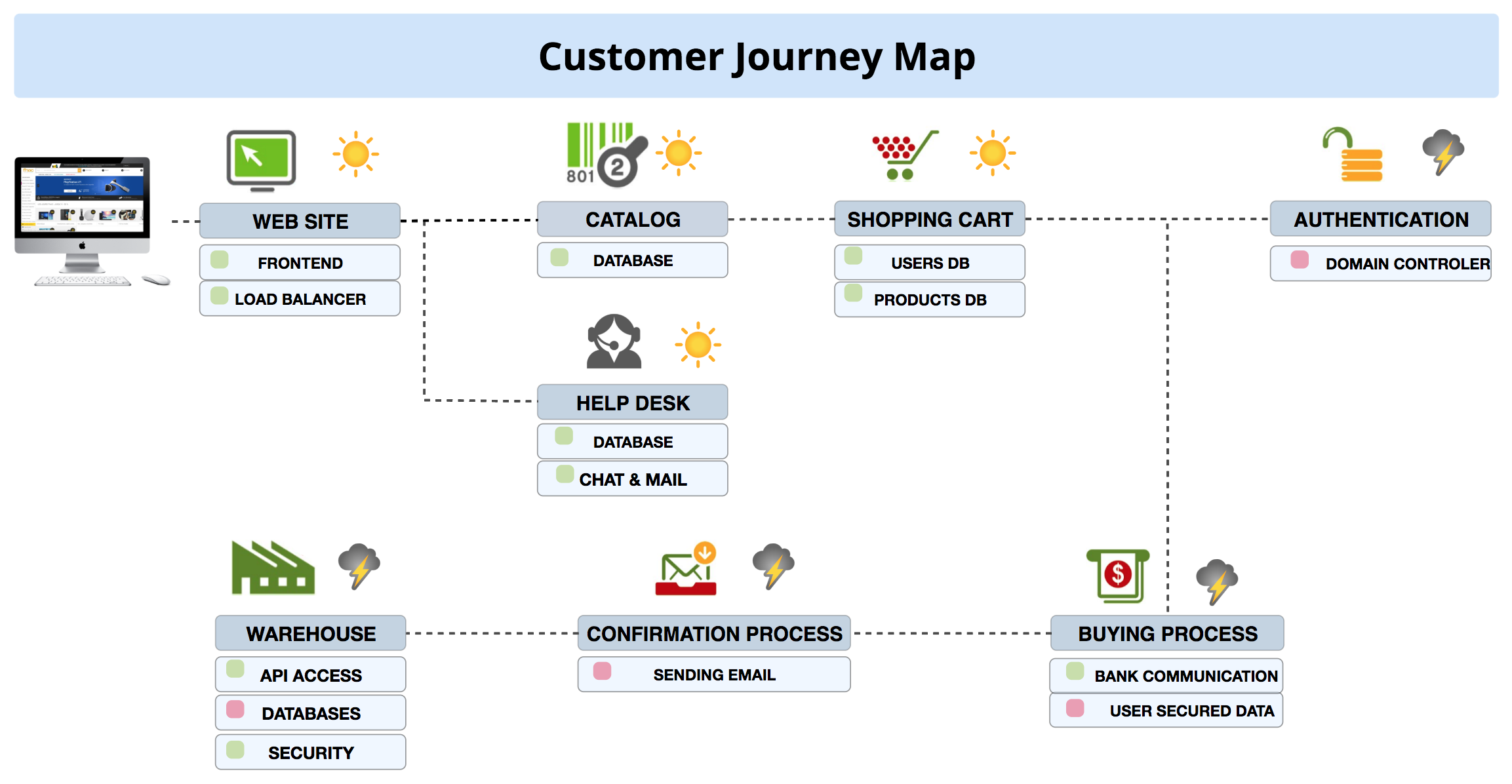
Simple links

The simple links in this view show the logical connections between different elements.
../../_images/link_simple_example.png

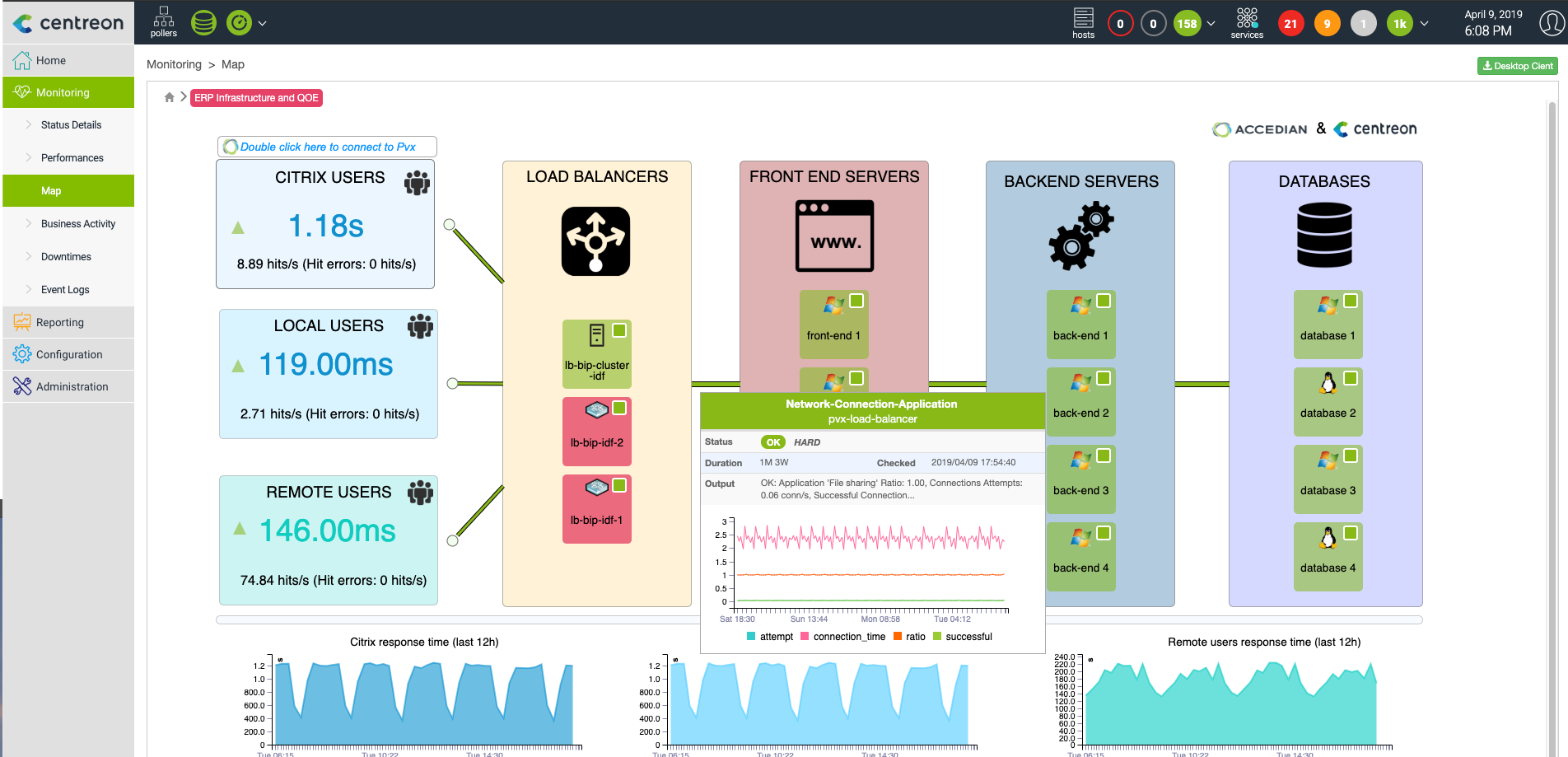
Status links

Status links can be used to represent the ability of a host to ping another host. This map shows the availability of a load balancer and the servers connected to it.
../../_images/link_status_example.png

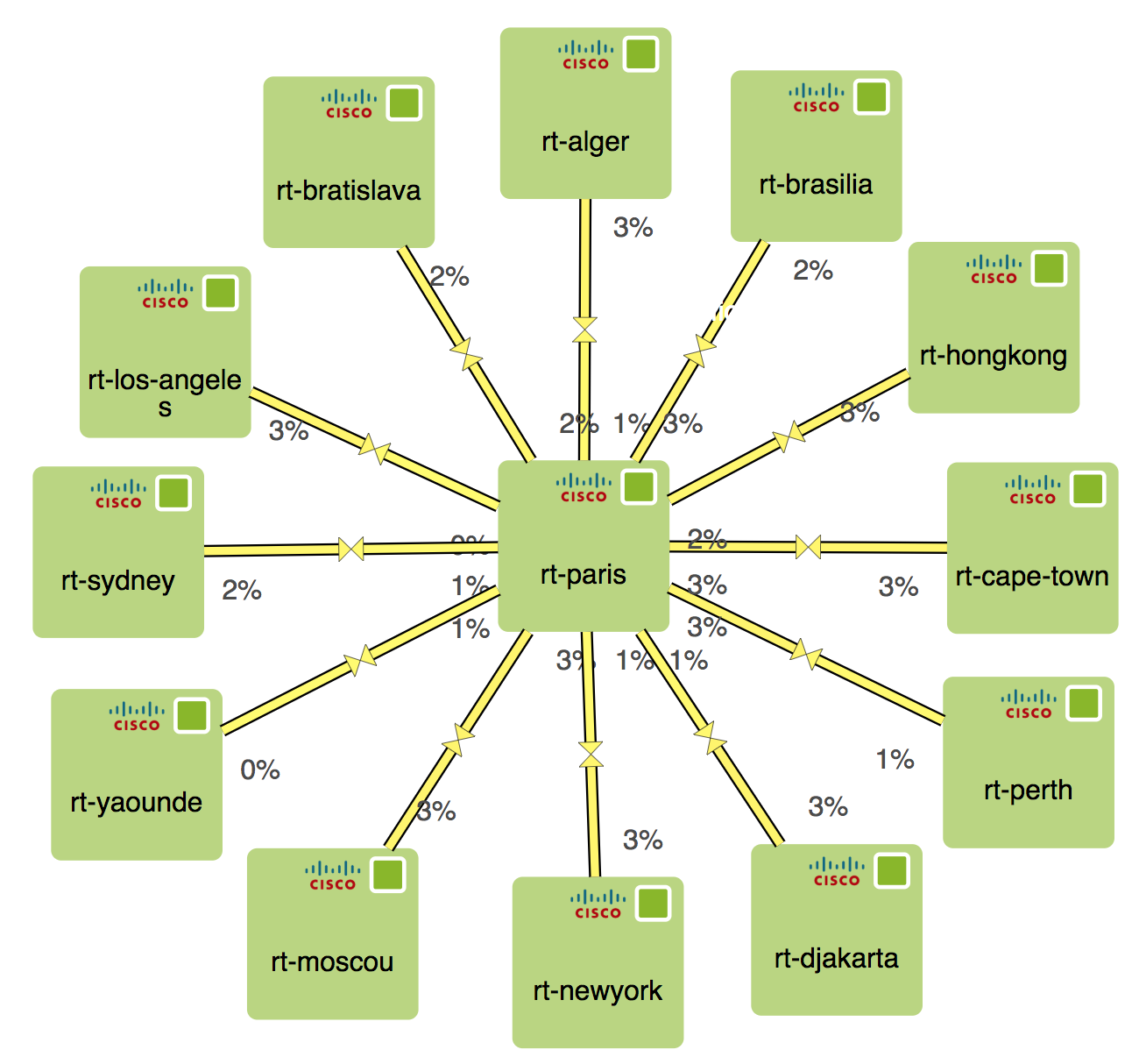
Metric link

When configuring a metric link, choose a metric to associate it to. For double links you need to choose two metrics.

A good example is the traffic metric. You generaly have a traffic_in and traffic_out associated with your traffic service.

Warning

You must first attribute a maximum value to all the metrics to be able to use the Finish button of the wizard. You can then display the percentage values and determine the color of the links.
../../_images/link_metric_example.png

Note

This color properties only apply to the user account that modifies this property on the desktop client.

Next Previous

© Copyright 2018, Centreon.

Sphinx theme provided by Read the Docs
Read the Docs v: latest
Versions
latest
4.4.x
Downloads
PDF
Epub