Server
In the Centreon Web interface, create a Centreon user who has access to all resources and can execute all external commands. Since the password will be stored in clear in the configuration file, you should not use Centreon admin user.
Installation
Warning
We recommand to use Centreon Enterprise Server in Database Mode for this installation. The commands described below are for Centreon Enterprise Server 3.3 which provides Tomcat6. They may need to be adapted on a different platform. For exemple, using Tomcat7 you shall use tomcat instead of tomcat6.
On the Centreon Web interface
Create a new user, centreon_map for instance, with access to all resources and all actions.
For Centreon Web >= 2.8.6: Give this user access to Centreon Web API
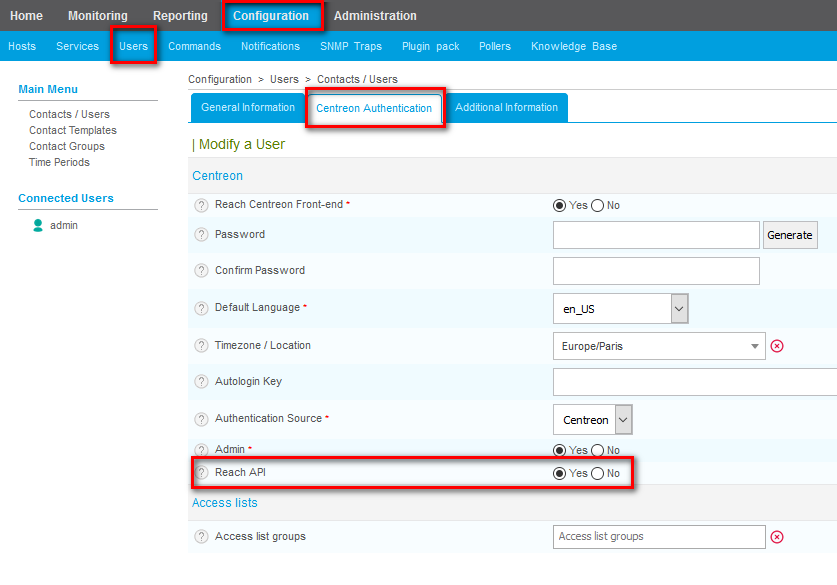
On the Centreon Central machine
You have to create a user in the Mysql instance hosting ‘centreon’ and ‘centreon_storage’ databases.
# mysql
> CREATE USER 'centreon_map'@'<IP_SERVER_MAP4>' IDENTIFIED BY 'centreon_map';
> GRANT SELECT ON centreon_storage.* TO 'centreon_map'@'<IP_SERVER_MAP4>';
> GRANT SELECT, INSERT ON centreon.* TO 'centreon_map'@'<IP_SERVER_MAP4>';
The INSERT privilege will only be used during the installation process in order to create a new Centreon Broker output. It will be revoked later.
On the Centreon Map 4 machine
Install Centreon Map 4 from the Centreon Map yum repository. It will automatically install java and tomcat6 if needed. You need to have a MySQL/MariadDB database to store Centreon Map data, wether it’s on localhost or somewhere else.
# yum install centreon-map4-server
Configuration
Warning
You need to do the following part, whether you installed the server by RPM or from the tarball
Make sure that the database that stores Centreon Map data has this optimization (automatically added by the RPM in /etc/my.cnf.d/map4.cnf) : max_allowed_packet = 20M. Then, just restart MySQL so this is applied :
service mysql restart
Then there is two possibilities for the license configuration:
Old license in use (license.json.asc)
Copy the license file you retrieve previously in the folder /etc/centreon-studio/
# mv licence.json.asc /etc/centreon-studio/
# chmod 644 /etc/centreon-studio/licence.json.asc
# chown root:root /etc/centreon-studio/licence.json.asc
New license in use (map.license)
Create the /etc/centreon/license.d/ directory and copy the license file you retrieve previously in the folder
# mkdir -p /etc/centreon/license.d/
# chmod 775 /etc/centreon/license.d/
# mv map.license /etc/centreon/license.d/map.license
Note
Centreon Map can work with both licenses. Although license check process will always priorities the new license.
Execute the Centreon Map 4 server configuration script.
# cd /etc/centreon-studio/
# ./configure.sh
On the Centreon Central machine
Note
Before restarting Broker you have to export the configuration from the Centreon Web interface.
Restart Centreon Broker
# service cbd restart
Remove the INSERT privilege of the user centreon_map
# mysql
> REVOKE INSERT ON centreon.* FROM 'centreon_map'@'<IP_SERVER_MAP4>';
On the Centreon Map 4 machine
Check your configuration.
# cd /etc/centreon-studio/
# ./diagnostic.sh
If everything’s alright, then start Tomcat with the Centreon Map 4 server.
# service tomcat6 start
Verify your installation
Once your server is started, you can check if all its APIs are up and running by entering the following URL in your favorite web browser :
If your server is running in http mode: http://<IP_SERVER_MAP4>:8080/centreon-studio/docs
If your server is running in https mode: https://<IP_SERVER_MAP4>:8443/centreon-studio/docs
You should see the following page
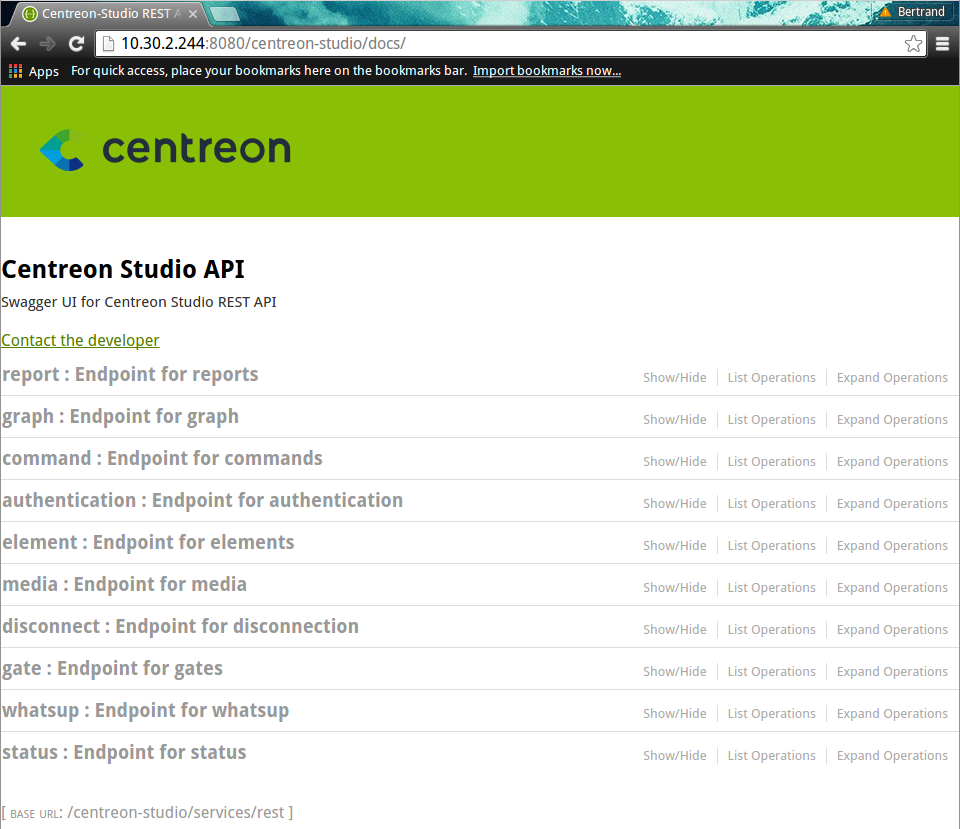
The Map 4 server installation is finished. If you want to configure SSL, you can go to that page : Advanced Centreon Map 4 Configuration.
Statistics
With the objective of improving daily user experience in our products, Centreon offers you the possibility to send your usage statistics of Map 4 to our servers. We will be able, with these information, to better target our developments, increase the stability of our products and be a step ahead of your needs.
The statistics we collect regroups:
The version of you Map 4 server
The name of your company (written in your license file*)
The name of your Map 4 plateform (also written in your license file)
The number of resources supervised by your Centreon
- The number of connection and deconnection on your Map 4 platform. These information includes:
The number of connected users
The IP address of the connected users
By default, these information are sent every hour to our servers.
You can, at any time, change wether you want to send us your statistics or not and how often, by editing the file “/etc/centreon-studio/studio-config.properties”. These are the 2 lines concerned :
statistics.enabled=true
We collect data through a service named Mixpanel, specialized in statistics retreival. You can visit the company website for more details. For information about this company term of use, please read this page