Trouble shooter
This chapter describes common errors you might encounter during your utilization with Map 4. Please refer to this section before contacting our support team.
We will inhance this part thanks to your feedbacks.
Map 4 server
How can I check if my Map 4 server is running ?
Their are 2 main things you can do to check if your Map 4 server is up and running.
First of all, check if Tomcat is running. To do so, connect through SSH to the server hosting Map 4 and execute the following command :
service tomcat6 status
You should have the following output:
tomcat6 (pid XXXXX) is running... [ OK ]
If your tomcat is stoped the message will be:
tomcat6 is stopped [ OK ]
In this case, juste start ip up:
sudo service tomcat6 start
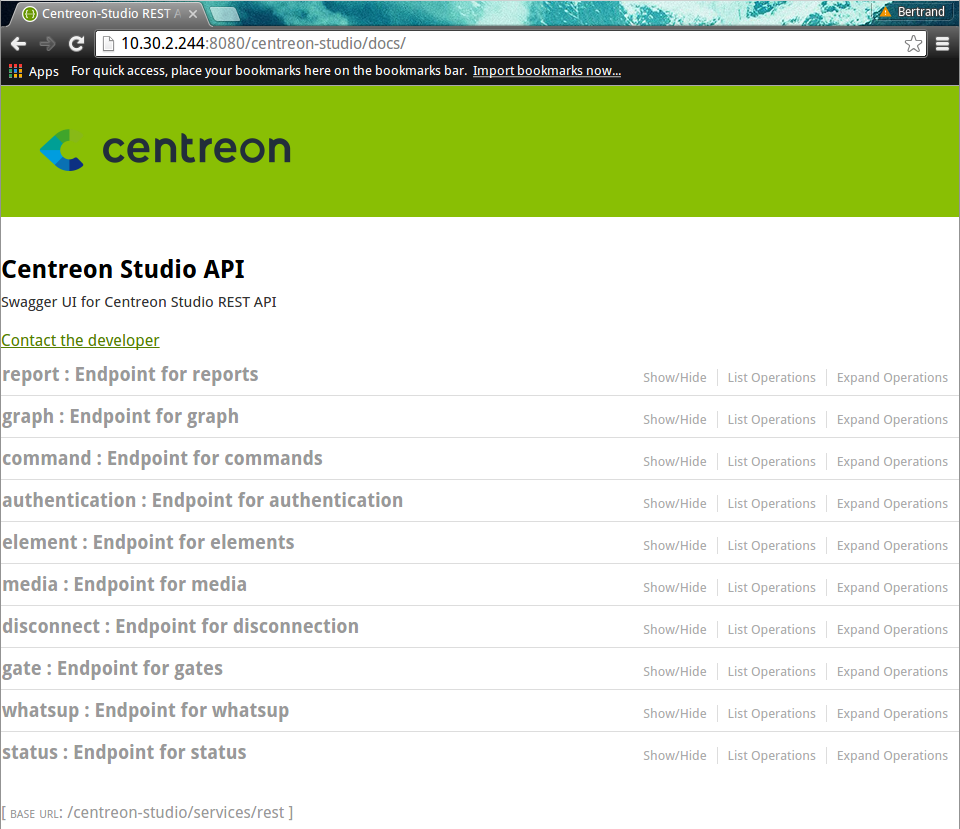
Once you know your server is running, you can try to access its API through you web browser. To check the REST API used by the web client:
If your server is running in http mode: http://<IP_SERVER_MAP4>:8080/centreon-studio/docs
If your server is running in https mode: https://<IP_SERVER_MAP4>:8443/centreon-studio/docs
You should see the following page
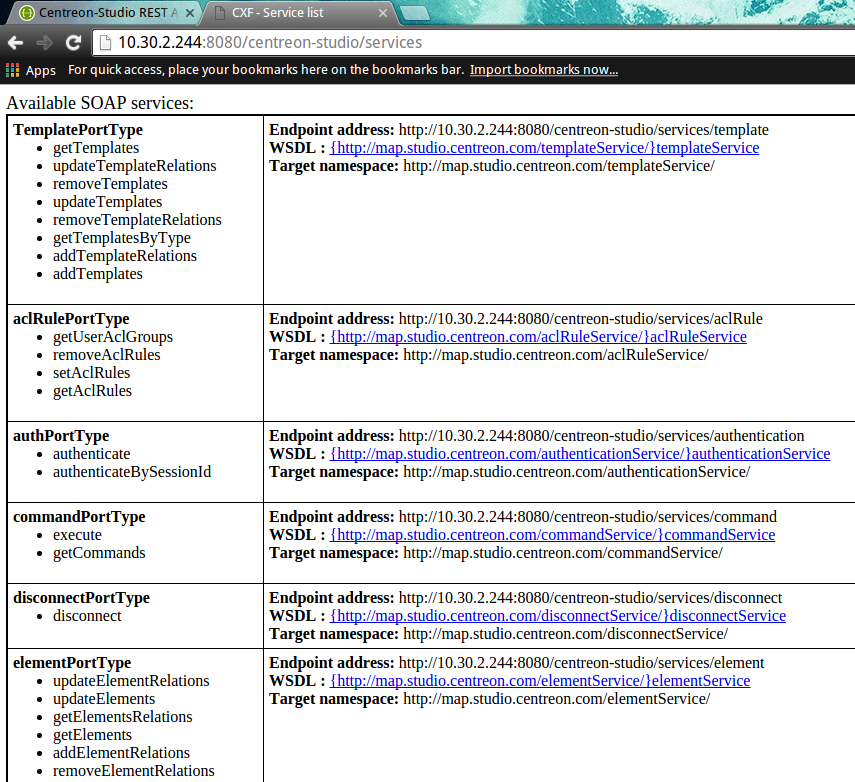
You can also check the SOAP API, used by the desktop client:
If your server is running in http mode: http://<IP_SERVER_MAP4>:8080/centreon-studio/services
If your server is running in https mode: https://<IP_SERVER_MAP4>:8443/centreon-studio/services
My tomcat is running but I cannot access Map 4 API pages
You might want to check if the server on which Map 4 is installed doesn’t have any firewall preventing it to run correctly. To do so, run the following command:
# service iptables status
If you have this output:
iptables: Firewall is not running.
Then your issue is not here
If you have this output:
Table: filter
Chain INPUT (policy ACCEPT)
num  target     prot opt source               destination
1    ACCEPT     all  --  0.0.0.0/0            0.0.0.0/0           state RELATED,ESTABLISHED
2    ACCEPT     icmp --  0.0.0.0/0            0.0.0.0/0
3    ACCEPT     all  --  0.0.0.0/0            0.0.0.0/0
4    ACCEPT     tcp  --  0.0.0.0/0            0.0.0.0/0           state NEW tcp dpt:22
5    REJECT     all  --  0.0.0.0/0            0.0.0.0/0           reject-with icmp-host-prohibited

Chain FORWARD (policy ACCEPT)
num  target     prot opt source               destination
1    REJECT     all  --  0.0.0.0/0            0.0.0.0/0           reject-with icmp-host-prohibited

Chain OUTPUT (policy ACCEPT)
num  target     prot opt source               destination
Then your firewall is running and prevent any connection from and to your Map 4 server. So you must either add input and output rules for Map 4 or disable your firewall.
To open the concerned ports:
# /sbin/iptables -A OUTPUT -p tcp --dport <PORT> -j ACCEPT
# /sbin/iptables -A INPUT -p tcp --dport <PORT> -j ACCEPT
Note
Replace <PORT> by the port your Map 4 server is using (mostly 8080 or 8443 if you have configured it in SSL)
To simply disable your firewall juste execute:
# service iptables stop
iptables: Flushing firewall rules:                         [  OK  ]
iptables: Setting chains to policy ACCEPT: filter          [  OK  ]
iptables: Unloading modules:                               [  OK  ]
My images from Centreon Web are not displayed in Map 4
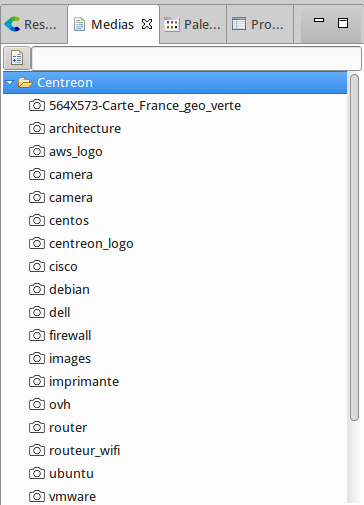
Map 4 automatically import all images from Centreon Web into its own database. So on your desktop client, under the “Media” part, you should see all your files from Centreon Web. If not, you may want to check the following steps:
Check your MySQL configuration
On your Map 4 server, open the file my.cnf and check if the line ‘max_allowed_packet=20M’ is present.
# vi /etc/my.cnf
max_allowed_packet=20M
Then reload your MySQL database
sudo service mysqld reload
Wait a few minutes for the Map 4 server to synchronize Centreon Web resources. Images from Centreon Web should then appear in the “Media” part of your desktop client, in the folder “Centreon”.
If the issue is not solved, check your configuration file
Check your Map 4 configuration file
Connect through SSH to your Map 4 server. Open the studio-config.properties file
# vim /etc/centreon-studio/studio-config.properties
Check that, for the ‘centreon.url’ variable you have a full path to your Centreon Web interface
centreon.url=http://<IP_SERVER_MAP>
Note
Don’t forget to replace ‘http’ with ‘https’ if your Centreon Web interface is using HTTPS.
Wait a few minutes for the Map 4 server to synchronize Centreon Web resources. Images from Centreon Web should then appear in the “Media” part of your desktop client, in the folder “Centreon”.
Map 4 desktop client
“Java was started but returned exit code = 13”
The desktop client does not start and an error message displaying an “error code = 13”.
Please install a 64 bits JVM.
Impossible to create a new view
On the desktop client, if you want to create a new view but the button is disabled, it means you don’t have the permission to do it.
You need a Centreon Map administrator to authorize you to create, update or delete views. When you first install your Map 4 server, only Centreon web administrator are Map administrator. So it’s their job to grant administration privileges to other ‘normal’ users of Centreon.
Impossible to import medias
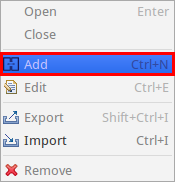
When you right click on the Media panel, the Import button is disabled.
There are 2 things you should know about medias :
- The folder Centreon is automatically created and it contains all images from Centreon Web.
You cannot add or remove any image from this folder
All images are on the same level (no subfolders)
You cannot import images at the root of the media panel.
So the solution is to create a new folder, let’s call it Icons.
Then you can do a right click on this folder and select Import.
An error occured when I open a geographic view
If you open a geographic view or container and your background is composed of grey cross with the following popup message:
Warning
Error while retreiving Mapbox tiles. Please check your Mapbox configuration.
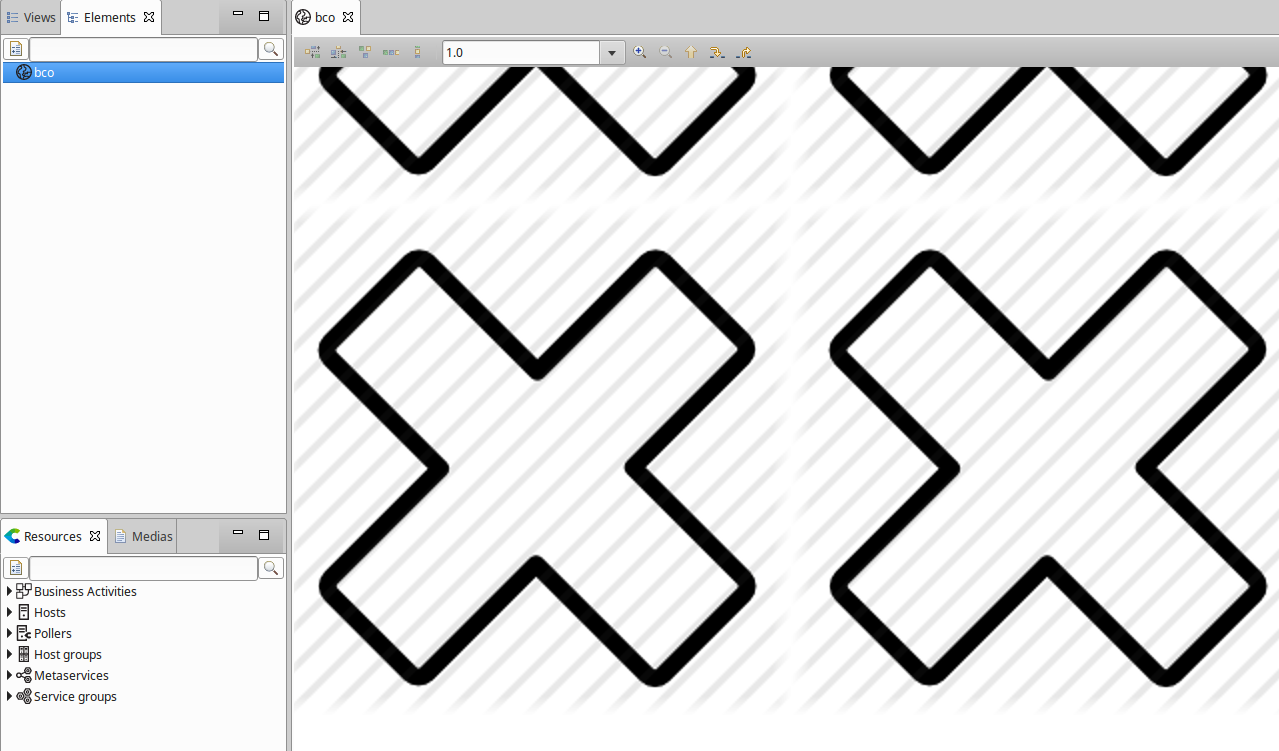
Then you should propably check the following points:
Ensure that your Mapbox credentials are valid.
To see how to configure your Mapbox credentials, please visit this page Your Mapbox secret key may have changed. As you cannot see the previously created keys, you might want to create a new one and add it in your Centreon Map Server configuration file * If your computer is behind a proxy to have an internet access, please configure this proxy in Centreon Map Desktop Client by following this link * The Mapbox style you used on your view might have been deleted.
Try to edit your view / container and change the Mapbox style used
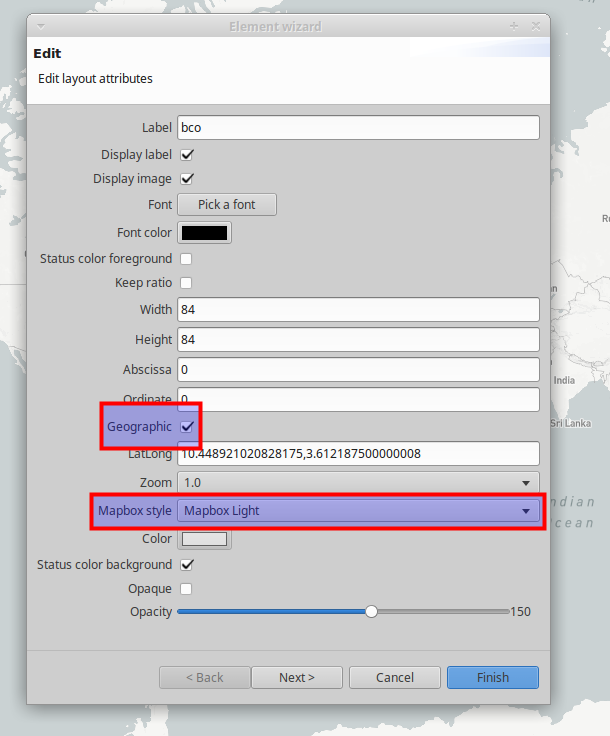
If you cannot select any style the issue probably comes from one of the previous points.
Error with special characters
If you try to use non latin1 characters in labels and get a popup error displaying “Could not execute statement” on your desktop client, it’s probably because your database is in latin1 In order to change it to UTF8, you need to access your Map 4 server in SSH and execute the following commands:
/etc/init.d/tomcat6 stop
mysqldump -uusername -p -h <HOST> centreon_studio > dump.sql
cp dump.sql dump-fixed.sql
vim dump-fixed.sql
:%s/DEFAULT CHARACTER SET latin1/DEFAULT CHARACTER SET utf8 COLLATE utf8_general_ci/
:%s/DEFAULT CHARSET=latin1/DEFAULT CHARSET=utf8/
:wq
mysql -uusername -ppassword -h <HOST> < dump-fixed.sql
/etc/init.d/tomcat6 start
Note
If you are on CentOS 7, use systemctl start / stop tomcat instead of /etc/init.d/tomcat6 start / stop
My Desktop client is slow and I often get disconnected
Depending on your Centreon’s volumetry (the number of services) and your computer hardware configuration, your Desktop client might need more RAM than it can use by default. In that case, it will start freezing, trying to free some memory to use it right after. You can check this behavior by opening your task manager (Ctrl + Maj + Esc) and take a look at the memory consumption. If it increases then seems to reach a limit but your CPU is still working hard, it means that your desktop client needs more RAM.
To give it that, you need to edit the file
On Windows:
\C:\Users\<YOUR_USERNAME>\AppData\Local\Centreon-Map4\Centreon-Map4.ini
On Linux
/opt/centreon-map4-desktop-client/Centreon-Map4.ini
and add the following line at the end of the file, on a new line:
-Xmx4g
The « 4g » means 4 Go (by default it can only use 2Go). You can change this number depending on your hardware (and set « 3g » for instance).
Then restart your desktop client.
I get the error “Cannot authenticate user” on the login page.
For Centreon Web >= 2.8.6, check if your user has the option “Reach API” checked
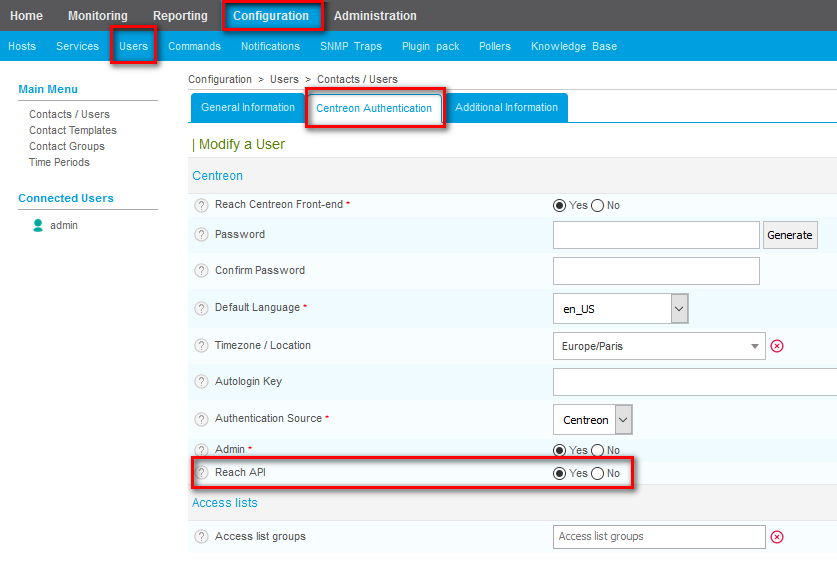
Check that the email associated with your user in Centreon Web is present in the license file that we delivered to you, under the secion “users[…”
I’m using Windows Remote Desktop (RDP) and I have many errors
If you are using Centreon Map 4 desktop client through a Remote Session (with RDP for instance), you might encounter an error displaying many popups like “128)” or “512)”, leaving your desktop client unusable.
To prevent this from happening, you need to change a parameter of your RDP application.
Go to Advance -> Display and select “Highest quality (32bit)”. You can then access your remote computer and this error will no longer appear.
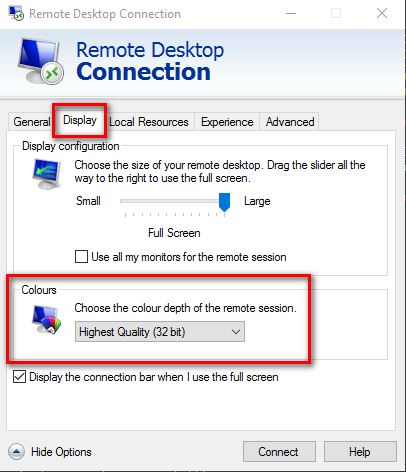
Tip
For those on Linux or Mac using the application rdesktop, add this argument to your command line : -a 32
Note
PS: This also happens if you use the skin “Windows server” on your computer. Go to your windows parameter and change the color settings to use 32bit colors.
Map 4 web client
My web client is displaying “Authentication error.”
You might see the following error on your web client.

First of all, check if you have access to Centreon Map 4 server APIs (see this entry).
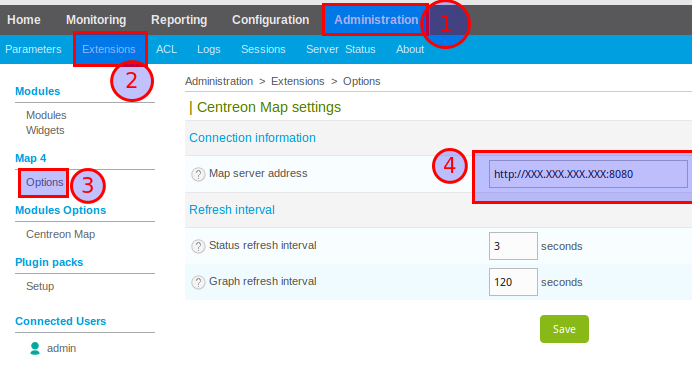
On your Centreon Web interface, check your Map 4 web client configuration by going in Administration -> Extensions -> Map 4 -> Options
The URL set in ‘Map 4 server address’ must include the protocol (http or https) and the port used by your Map 4 server (usualy 8080 for normal connexion or 8443 for secure connexion).
My web client displays an empty page
Your web client is configured but it displays an empty page:
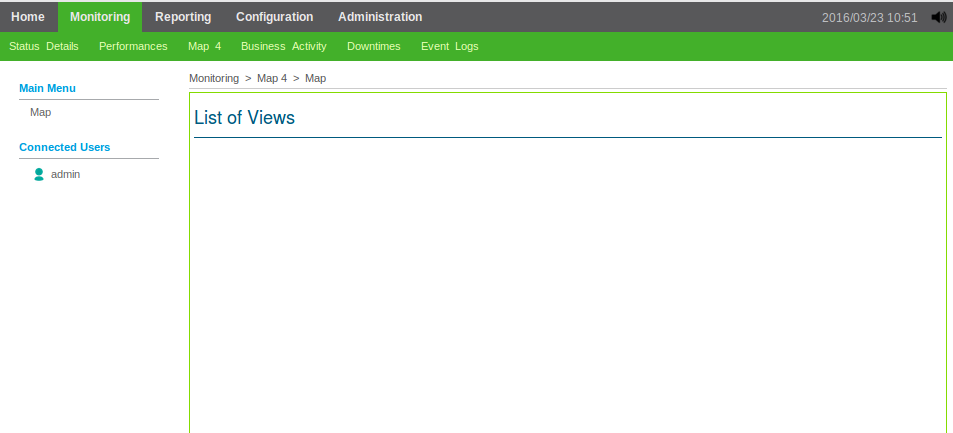
It means that either there is no views created on the server or you don’t have access to them.
If you are a Centreon Map 4 administrator, you can see all views. So it means there are currently no views created. Here is a quick start to create one: Create a new view
Otherwise, contact a Centreon Map 4 administrator or create your own views if you have the necessary clearance.