Links
When using Centreon MAP, you can create links between any elements. There are three type of links:
Simple link: Connects two elements in color.
Status link: Uses a color based on the status of a service.
Metric link: Displays the % of a metric, appearing in a color according to this value.
You may use the concept of “link template” in Centreon Map to accelerate the creation of lot of links with the same properties.
Warning
When you delete a link template, it removes all the links created with this template.
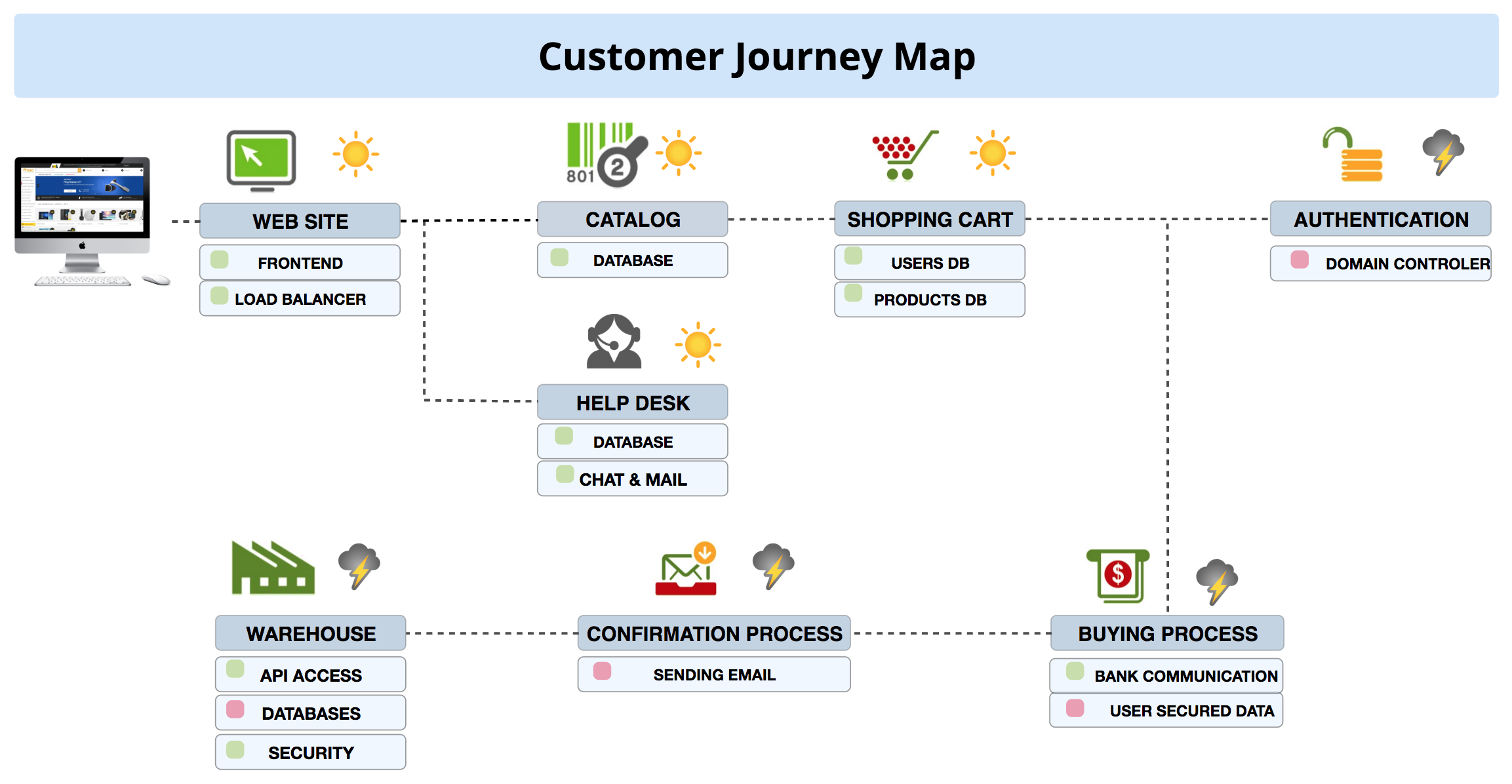
Simple links
The simple links in this view show the logical connections between different elements.
Status links
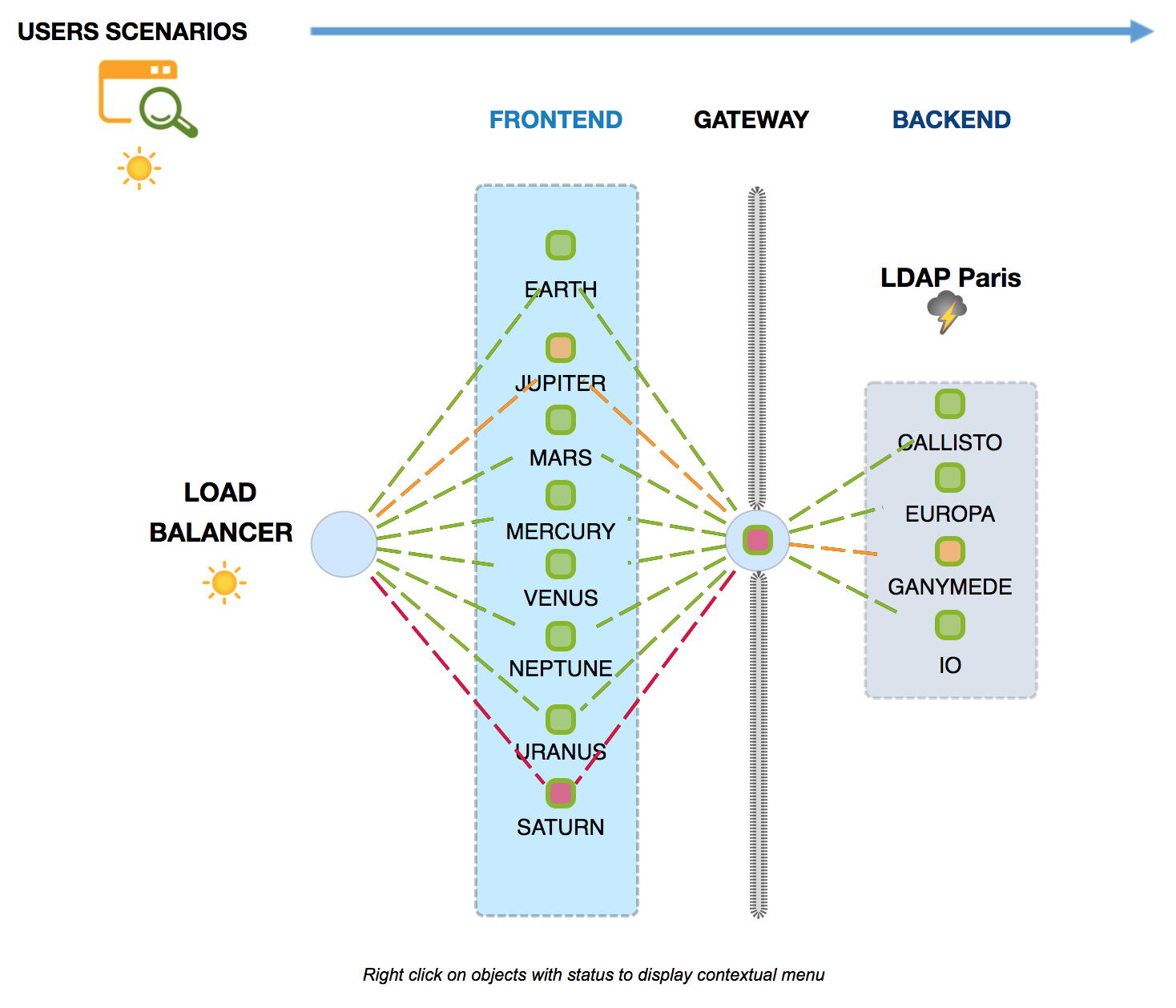
Status links can be used to represent the ability of a host to ping another host. This map shows the availability of a load balancer and the servers connected to it.
Metric link
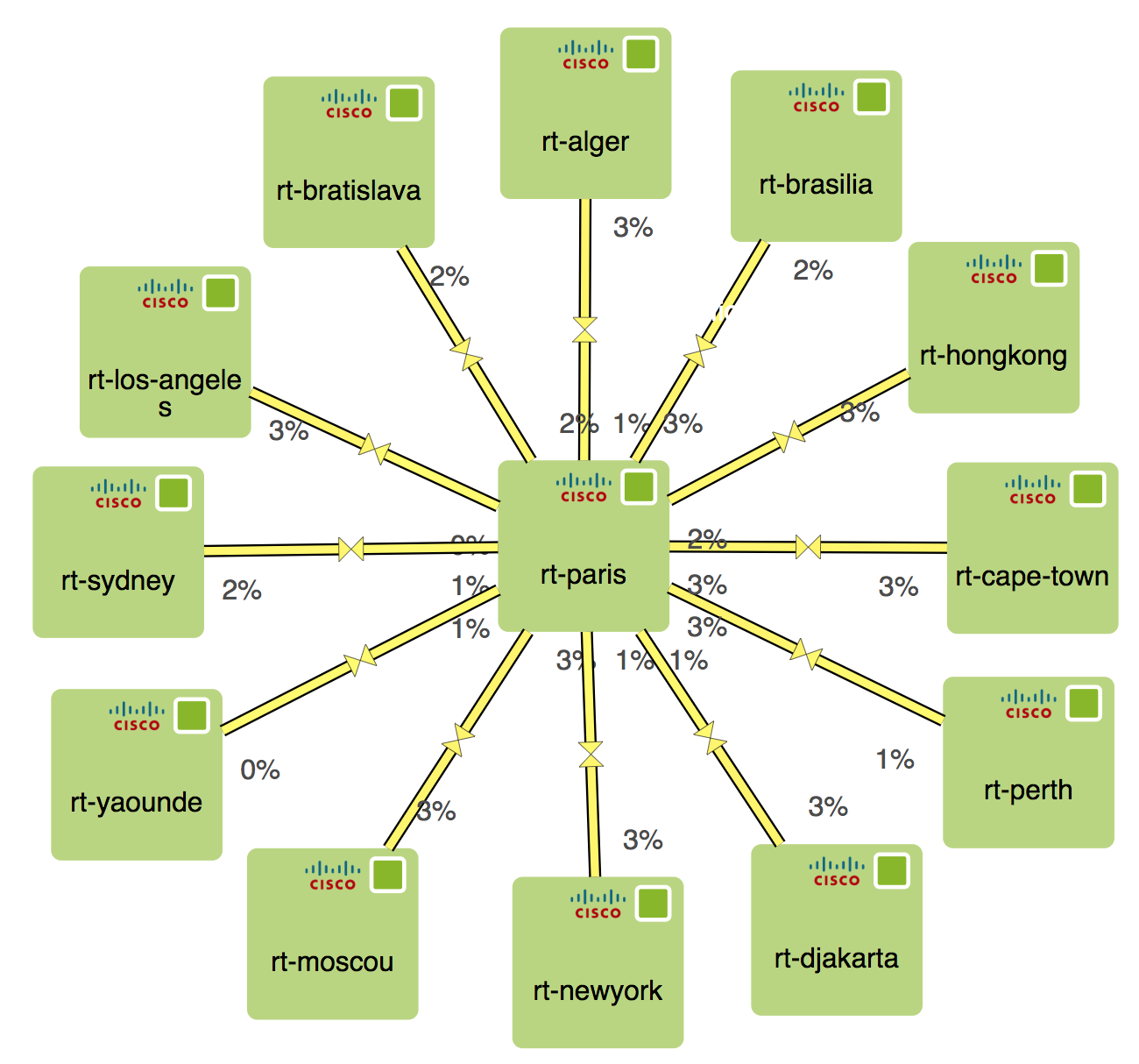
When configuring a metric link, choose a metric to associate it to. For double links you need to choose two metrics.
A good example is the traffic metric. You generaly have a traffic_in and traffic_out associated with your traffic service.
Warning
You must first attribute a maximum value to all the metrics to be able to use the Finish button of the wizard. You can then display the percentage values and determine the color of the links.
Note
This color properties only apply to the user account that modifies this property on the desktop client.