Geographic view using Mapbox
Mapbox is a service that generates attractive customizable maps. You can use Mapbox with Centreon MAP for free by:
Creating an account on Mapbox.
Retrieving a private key from your Mapbox account and adding it to the configuration of the Centreon MAP Server.
- Your account allows free limited use of the service up to 50k tiles/month.
A tile is an image used to compose the geographic view. If you need more tiles, you can upgrade your account (pricing).
Follow this procedure for creating a Mapbox account and retrieving your key:
First create your account on Mapbox.
Then go to your Mapbox account page, and click on “Access token,” then “Create a new token.”
A pop-up appears, asking you to select properties. Select:
Public scopes: styles:read and styles:tiles
Secret scopes: styles:list
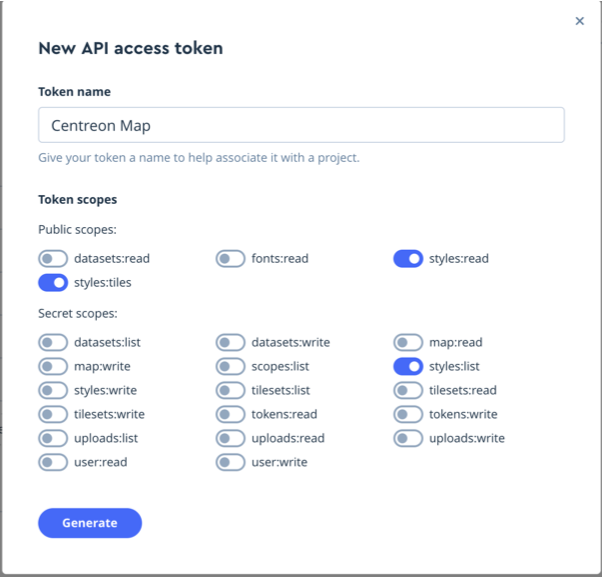
Once created, your token appears. Make a copy of it.
Warning
Once you leave the page, you will no longer be able to see your token. Be sure to copy it: you will need it to configure your Centreon MAP Server.
On the Centreon MAP server
Insert the token in the file /etc/centreon-studio/studio-config.properties.
##### GEO
mapbox.token=sk.xxxxxxxx
Then restart Tomcat.
# systemctl restart tomcat
Creating a Mapbox view
Now that the system is configured, you can create a geographic view:
Open your desktop client.
Open a view.
Right click on the background of the view and select “Edit.”
Check the “Geographic” checkbox.
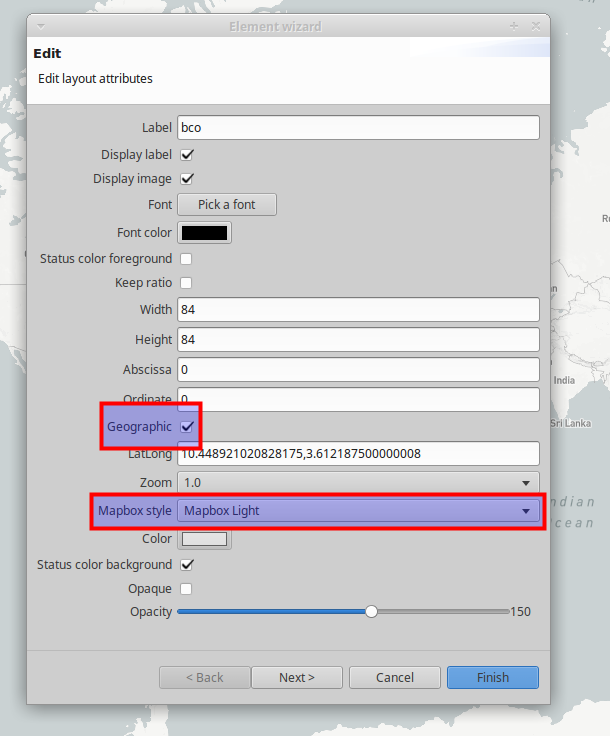
Your view will now appear as a geographic background on which you can zoom and move around.
By default, the whole world is displayed. Every time you open the view, the zoom is set to its default value: 1. You can change this setting.
Navigate around your view, zoom and go to the exact point where you would like your view to open by default. Then use the “Set current lat / long / zoom as defaut” button on the top of your desktop client.
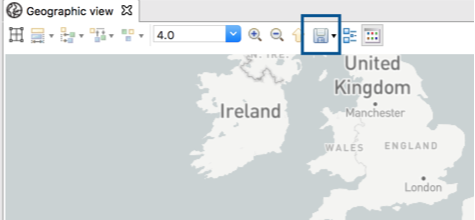
Whenever you open this view either through the desktop or the web client, the geographic view will always appear with the pre-defined zoom level.