Configuration
ACLs
When you first install Centreon MAP, only Centreon administrators may configure ACLs.
Centreo Map handles ACLs by the ACL groups defined in Centreon. You cannot configure an ACL on user-by-user basis.
Add / remove new administrators
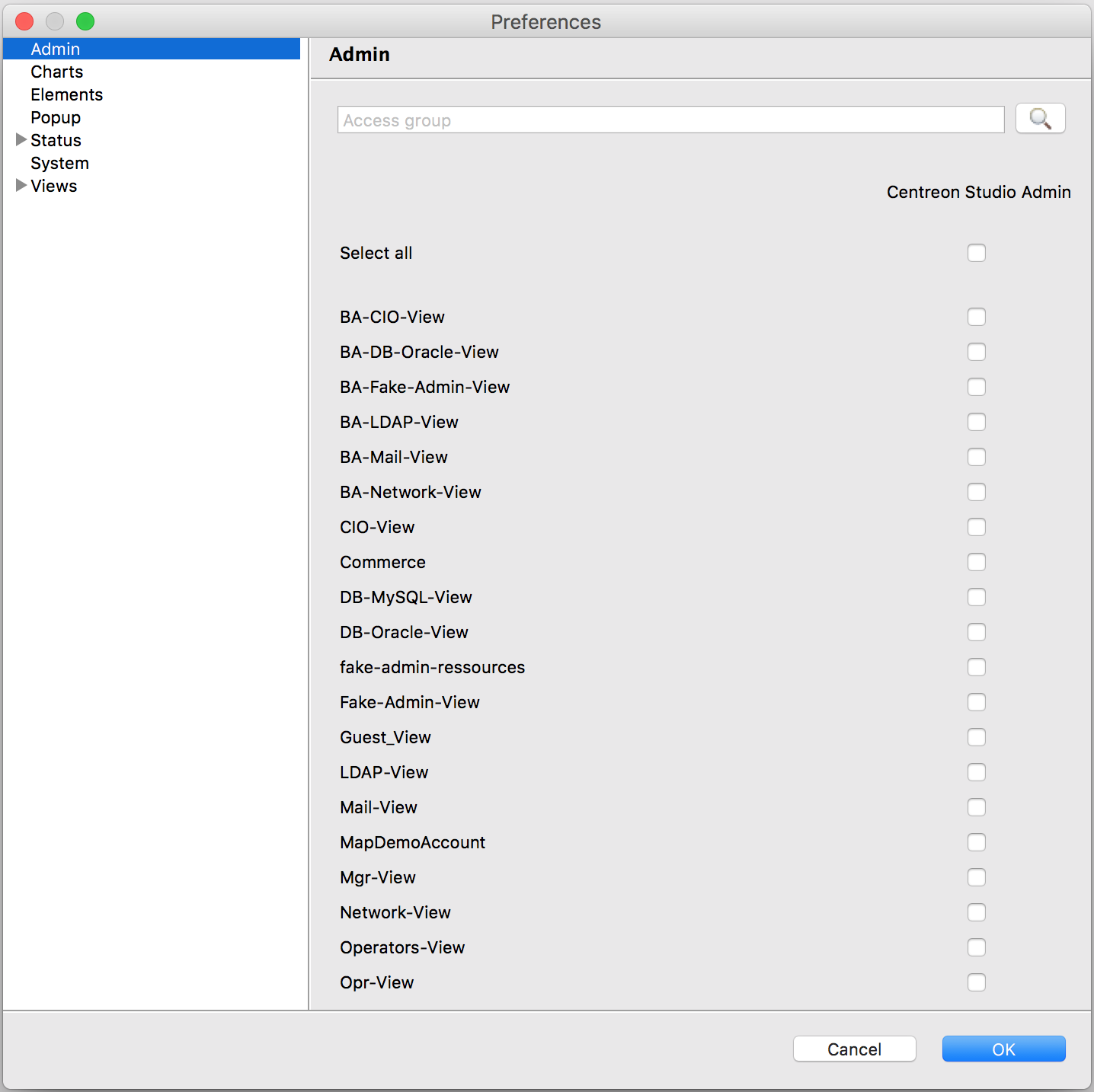
You can decide which ACL group contains Centreon MAP administrators.
Go to Preferences > Preferences then select Admin.
Assign specific rights to certain users
You can allow ACL groups to create, modify or delete views from the desktop client.
Go into Preferences > Preferences and then select Views > ACLs.
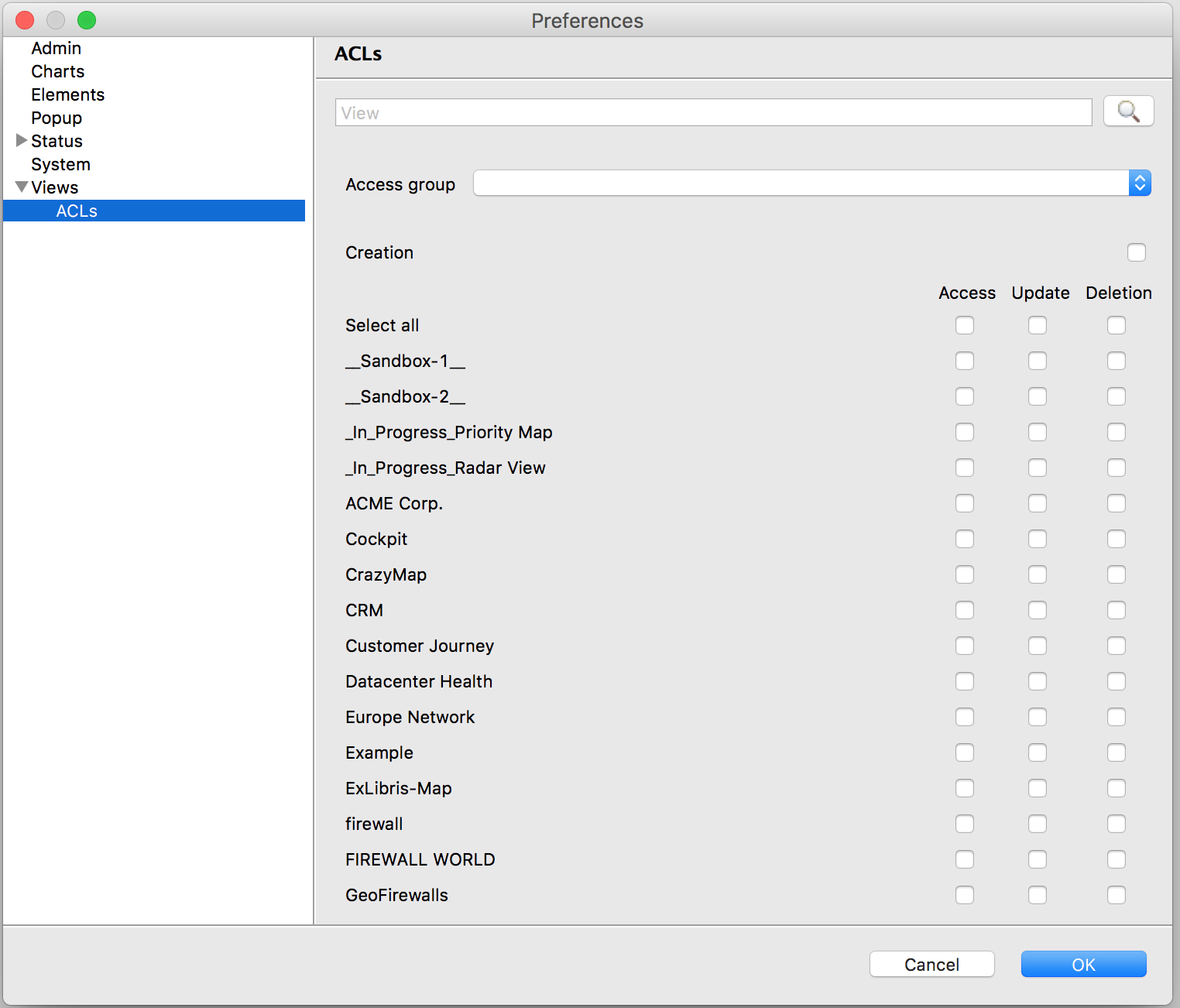
Select, from the list, the ACL group you want to configure. Then, for each view, define the specific rights to attribute.
Loading / unloading disabled resources
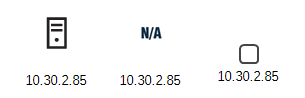
You can decide whether to load disabled resources into Map. If you do (which is the default configuration), all disabled resources will appear in the resource list. You will also be able to use them in your maps.
They will have no status and appear as shown in the following screenshot:
You can change this result by editing the /etc/centreon-studio/studio-config.properties file and adding the following line:
resource.load.enabled.only=true
Note
Be sure to restart the Centreon MAP server after modifying the configuration files (systemctl restart tomcat).
Define views & status computation parameters
What’s an inherited status ?
An inherited status is a Centreon Map custom status associated to some objects that is based on the worst status of its children, here are the rules:
A host has two statuses: its own status (up/down/pending) and an inherited status that is based on the worst state of its services.
A hostgroup only has an inherited status corresponding to the worst status of its children (hosts, services)
A servicegroup has only an inherited status: the worst status of its children (services)
A container has only an inherited status: the worst status of its children (hosts, services, meta-services, hotsgroups, servicegroups, BA, widgets)
Inherited status customization
Centreon Map server gives you the possibility to customize how this inherited status is computed & rendered in views. You may use the following parameters to adapt the behavior of inherited status computation to your use case:
Parameter |
Possible value |
Default value |
Description Version |
|---|---|---|---|
drilldown.useHardState |
true or false |
false |
Only use hard state value for inherited status propagation |
drilldown.ignoreElementInDowntime |
true or false |
false |
Do not propagate status for resources in downtime |
drilldown.ignoreElementAcknowledged |
true or false |
false |
Do not propagate status for acknowledged resources |
drilldown.ignoreSeveritySuperior |
integer |
0 |
Do not propagate status for resources having severity superior to this value |
gate.useResourcesAccess |
true or false |
true |
Should Centreon Map consider resources ACL when calculating inherited status of view content |
example: drilldown.useHardState = false
Specificity of gate.useResourcesAccess: Settings this parameter to “false” may highly improve Centreon Map performances, here is why:
gate.useResourcesAccess = false: all users see the same status & same resources in views, no matter the ACL ressources they have, they’re ignored. In that case, be careful who you’re giving access to views
gate.useResourcesAccess = true: users see different status & views regarding resources ACLs (decrease performance because you need to have one instance of each view for each users)
To configure these parameters you need to edit the following Centreon MAP server configuration file (modify or add missing parameters), then restart tomcat:
$ vim /etc/centreon-studio/studio-config.properties
$ systemctl restart tomcat
Highlighting problems
Note
This property will only apply to the user who modifies it on the desktop client.
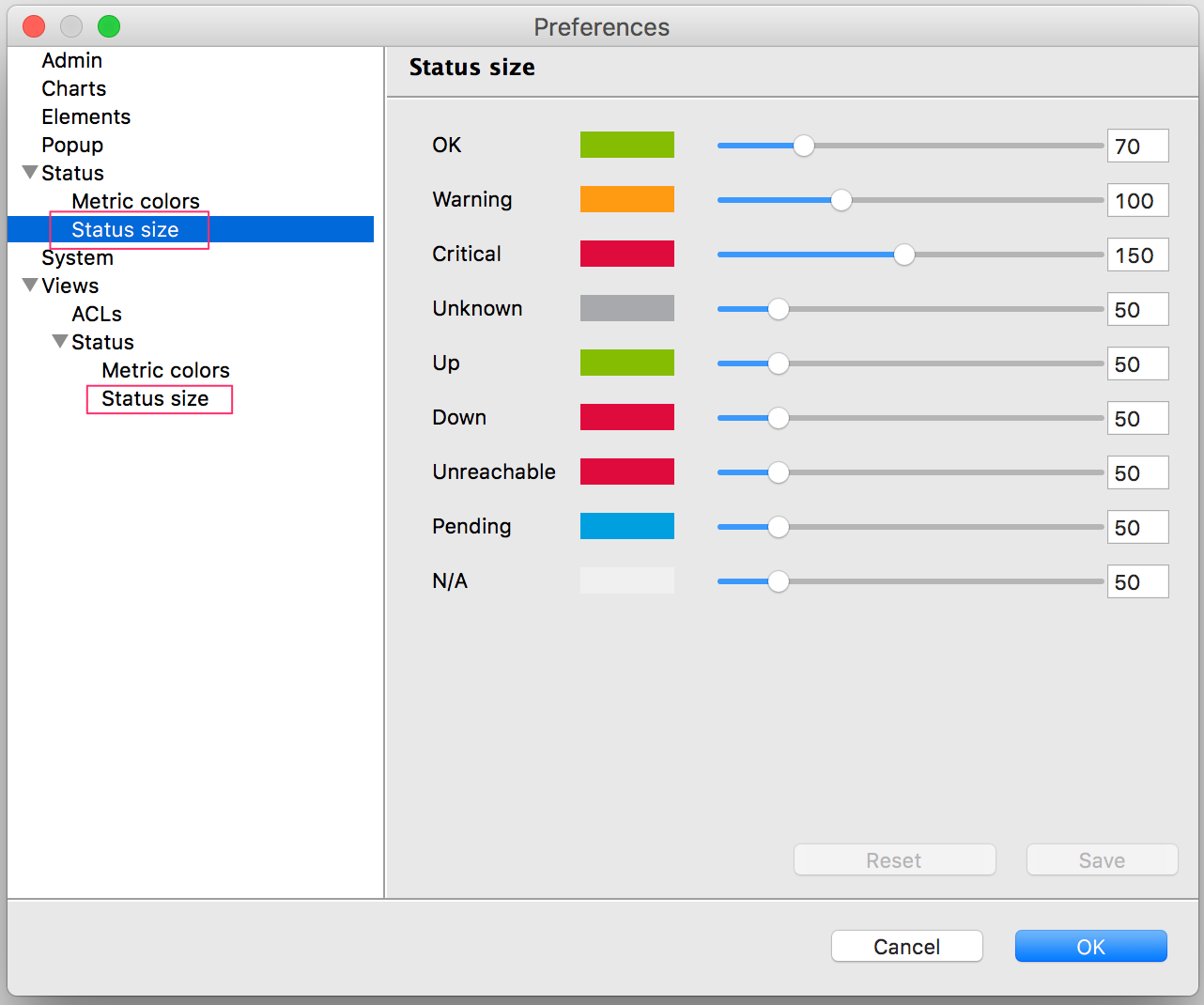
You can change the size of elements according to their status as a way of highlighting a problem. This only works when elements are expressed in the geometric style.
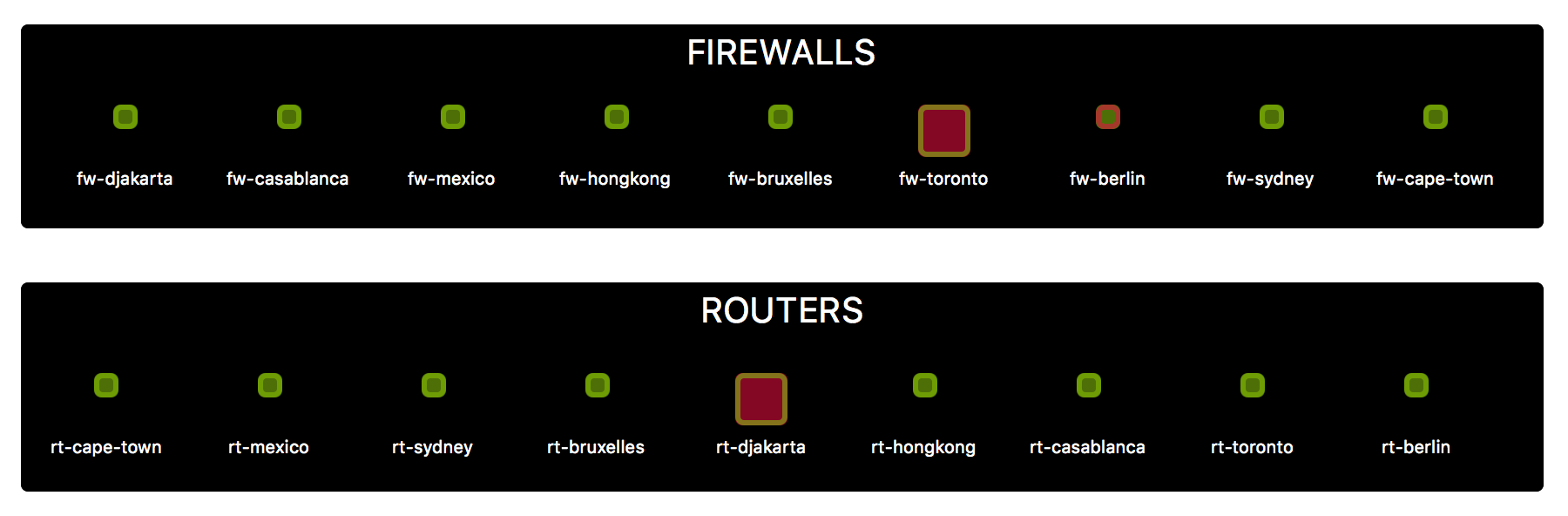
To use this feature, edit the Status size properties in the desktop Preferences. Go to Status > Status size to configure it globally or to Views > Status > Status size to configure it at the view level.
Changing link colors
Note
This property will only apply to the user who modifies it on the desktop client.
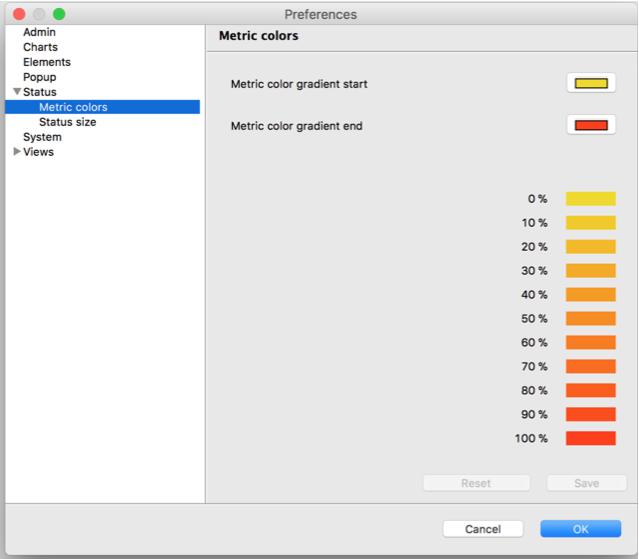
You can change the start and end color of a link based on a metric. These colors represent a scale from 0% to 100% for the metric(s) associated with the link.